Because AlooYTV is installed from an APK rather than Google Play, it doesn't update itself through the store. Keeping it current takes a minute, and it's the fix for a surprising number of playback problems.
Update steps
- Download the latest versionTap "Download AlooYTV" on this site. The link always points to the newest official release.
- Open the fileAndroid will ask "Do you want to update this app?" instead of "Install".
- Tap UpdateThe new version installs over the old one, and your settings stay as they are.
- Delete the APKRemove the downloaded file from your Downloads folder to free up space.
Why keep AlooYTV updated?
- Playback fixes: newer versions handle streams and servers better.
- Stability: fewer freezes and unexpected closes.
- Security: you always run the official build, not an old copy.
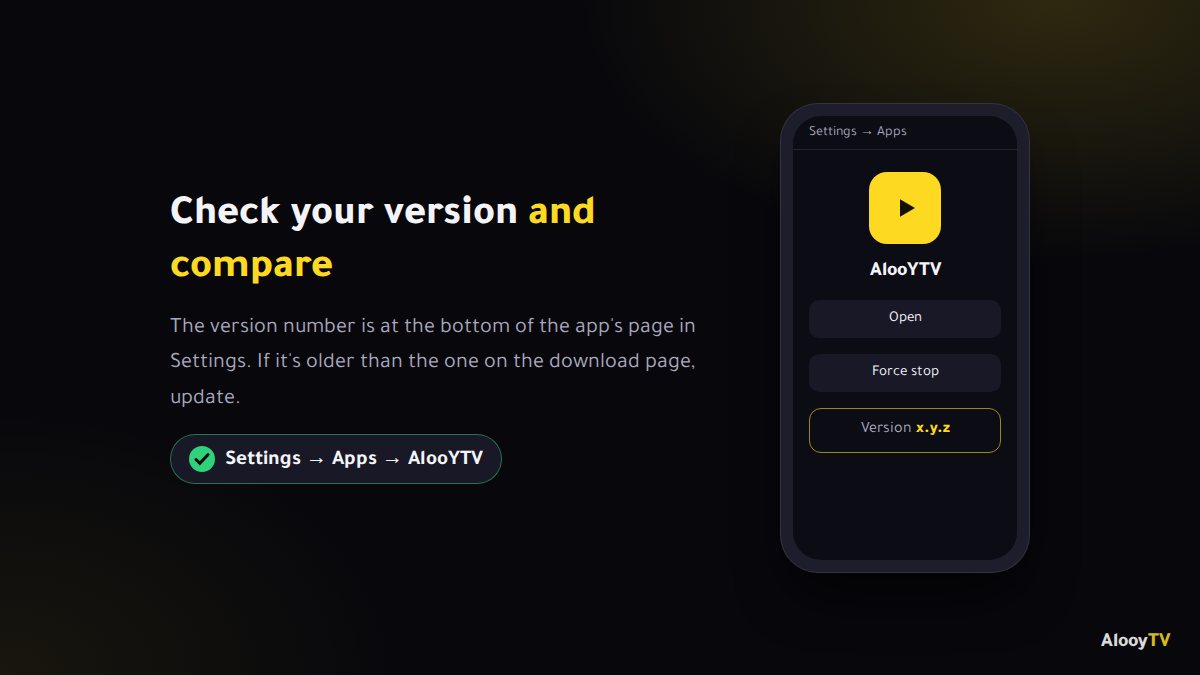
How do I check my current version?
Go to Settings → Apps → AlooYTV and you'll find the version number at the bottom of the page. Compare it with the version on the download page.
"App not installed" when updating
This usually means the version on your phone came from a different source, such as an old joootv build or a copy from an unofficial site, so its signature doesn't match. Uninstall the current version first, then install the new one from the official link. You'll lose the settings saved in the old app, but only this once.
Updating on a smart TV or TV box
- Open Downloader and go to the official download link, just like the first install.
- Download the file and press Install. The new version goes over the old one.
- Choose Delete afterwards to remove the file, since these devices are short on space.
Frequently asked questions
Will I lose anything when I update?
No. Installing the new version over the old one keeps your settings.
How often should I update?
When the app asks you to, when something stops playing properly, or every month or two.
Do I need to update on iPhone?
No. On iPhone you watch through Safari, so you always get the latest version.
Ready to start watching?
Live channels, series and movies, free and with no sign-up.